2026年01月20日
こんにちは!新入社員のYです。
今回の技術ブログではタイトルの通り、the Composable Architecture(TCA)の紹介と簡単なコードを用いて、入門のようなことをやっていきたいと思います。
まず初めに、冒頭でも触れましたが、TCAはthe Composable Architecture の略称です。
TCAは後述のState、Action、ReducerというReduxでお馴染みの構成要素を用いて、SwiftUIアプリの状態管理と副作用を予測可能な形で制御するためのライブラリ群です。以下のURLはTCAの公式Githubです。
GithubURL: https://github.com/pointfreeco/swift-composable-architecture
本記事ではなぜTCAを採用するのかといった問題の詳細については触れないので、ご興味がある方は以下の記事をご参照ください。
https://qiita.com/karamage/items/f63a5750e65c5c9745ae
以下ではTCAの解説でよくあるコードを用いて、TCAを実際に動かしてみます。お手元のXcodeでTCAを体験したい場合には、Swift Package Managerでhttps://github.com/pointfreeco/swift-composable-architectureのURLを用いて、インストールを行なってください。
TCAではState、Action、Reducerの3つの構成要素が存在します。
TCAにおいて、Stateはその画面が持つべき「状態」をひとまとめにした構造体です。 例えば、「現在のカウント数」や「ログインしているかどうか」といった、Viewが表示や挙動を決定するために必要なデータは、すべてここに定義します。
@ObservableState
    struct State{
        var count = 0
        var isLoggedIn = false
    }
Actionは、その画面で発生する「すべての出来事」を定義したものです。 ユーザーがボタンをタップした、画面が表示された、あるいはAPI通信の結果が返ってきた、といった「状態(State)を変化させるトリガー」を列挙型(enum)で管理します。
enum Action{
        case decrementButtonTapped
        case incrementButtonTapped
    }
Reducerは、アプリのロジックを一手に引き受ける司令塔です。「現在のState」と「発生したAction」を受け取り、Stateをどう更新するか、そして副作用(Effect)を実行するかを決定します。
var body:some Reducer<State,Action>{
        Reduce { state, action in
            switch action {
            case .incrementButtonTapped:
                state.count += 1
                return .none
            case .decrementButtonTapped:
                state.count -= 1
                return .none
            }
        }
    }
まとめたものが以下のコードです。
import ComposableArchitecture

@Reducer
@MainActor
struct HomeFeature {

    @ObservableState
    struct State{
        var count = 0
        var isLoggedIn = false
    }
    enum Action{
        case decrementButtonTapped
        case incrementButtonTapped
    }
    var body:some Reducer<State,Action>{
        Reduce { state, action in
            switch action {
            case .incrementButtonTapped:
                state.count += 1
                return .none
            case .decrementButtonTapped:
                state.count -= 1
                return .none
            }
        }
    }
}
State、Action、Reducerが揃ったら、最後にそれらをSwiftUIのViewと繋ぎます。 TCAでは、ViewからStoreを通じて状態を参照したり、アクションを送ったりします。
import SwiftUI
import ComposableArchitecture

struct HomeView:View {
    let store:StoreOf
    var body :some View{
        HStack {
            Button("-") {store.send(.decrementButtonTapped)}
            Text(String(store.count))
            Button("+"){store.send(.incrementButtonTapped)}
        }
    }
} 基本が理解できたら、次は「ログイン画面からホーム画面へ」といった画面遷移の実装です。TCAでは、遷移先の状態もすべてStateで管理します。
Destination 列挙型 @Reducer enum Destination を定義することで、その画面から「どこに遷移する可能性があるか」を列挙します。これにより、複数の遷移先を安全に管理できます。
@Presents マクロ state.destination に @Presents を付与するのがポイントです。
この値が nil でなければ:画面を表示している
この値が nil になれば:画面を閉じる というように、データの状態でナビゲーションを制御します。
.ifLet 演算子 Reducerの最後にある .ifLet は、遷移先の画面(HomeFeature)で発生したアクションを、親画面(LoginFeature)でも扱えるように繋ぎこむためのマジックです。
state.destination = .home(...) ログインボタンが押された際に、遷移先の初期状態(HomeFeature.State())を代入するだけで、SwiftUI側がそれを検知して画面を切り替えます。
import ComposableArchitecture

@Reducer
@MainActor
struct LoginFeature {

    @Reducer
    enum Destination {
        case home(HomeFeature)
    }

    @ObservableState
    struct State {
        var username = ""
        var password = ""
        @Presents var destination: Destination.State?
    }

    enum Action {
        case usernameChanged(String)
        case passwordChanged(String)
        case loginButtonTapped
        case destination(PresentationAction)
    }


    var body: some Reducer<State, Action> {
        Reduce { state, action in
            switch action {
            case let .usernameChanged(u):
                state.username = u
                return .none

            case let .passwordChanged(p):
                state.password = p
                return .none

            case .loginButtonTapped:
                // 画面遷移
                state.destination = .home(HomeFeature.State())
                return .none

            case .destination:
                return .none
            }
        }
        .ifLet(\.$destination, action: \.destination)
    }
}
最後に、ログイン画面のUIを構築します。ここでは「ユーザー入力の同期(Binding)」と「条件に応じた画面遷移」がポイントになります。
import SwiftUI
import ComposableArchitecture

struct LoginView:View {
    @Bindable var store:StoreOf
    var body :some View{
            NavigationStack {
                VStack(alignment:.center) {
                    Text("ログイン")
                        .font(.largeTitle)
                        .bold()
                        .padding(.top,16)
                    TextField("ユーザー名を入力", text: $store.username.sending(\.usernameChanged))
                    SecureField("パスワードを入力", text: $store.password.sending(\.passwordChanged))
                    Button("ログイン") {store.send(.loginButtonTapped)}
                        .foregroundColor(.red)
                        .padding()
                        .background(.blue)
                        .cornerRadius(10)
                        .overlay{
                            RoundedRectangle(cornerRadius:10)
                                .stroke(Color.blue,lineWidth: 1)
                        }
                }
                .navigationDestination(item: $store.scope(state:\.destination?.home, action:\.destination.home)
                ){store in
                    HomeView(store:store)
                }
            }
    }
} いかがだったでしょうか。今回のブログでは、the Composable Architecture(TCA)の実装方法について解説を行いました。TCAの導入によって状態管理が単方向に強制され、状態管理や処理の見通しが良くなりました。しかし、学習コストの高さは否めないというのが、私の所感です。きちんと身につければ大きな武器となることは間違いないと思うので、引き続き学習を進めていきたいと思います。
私自身が未熟で理解の及んでいないところもありますが、この記事が読者の方の参考になれば幸いです。
ここまでお読みいただきありがとうございました。
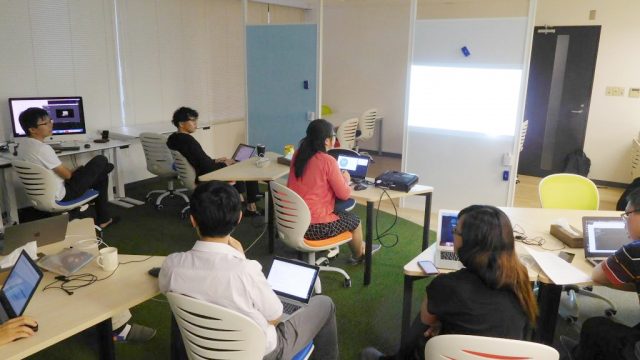
我们每个月都会举办一次全体员工的学习会。
学习会的发表内容是UIUX、Salesforce、figma等,大家会发表自己和工作相关的事情或者是自己有兴趣等等的东西。
发表的人会通过输出知识而对自己目前所有的知识进行整理,
其他员工也获得了了解发表的人的想法和新知识的好机会。
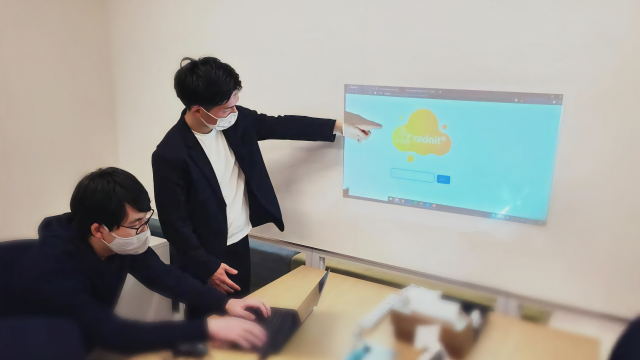
在您加入公司后,公司将会对您进行培训。
今年度所学的是HTML,CSS,JavaScript的基础编程
在这一年的下半年,我们通过Google-NewsAPI取得新闻来制作了一个新闻网站。
我们使用Docker构建了一个容器环境,并开发了一个函数来显示在客户端使用API检索的新闻。
我们的团队使用了Bootstrap和Vue.js等框架
制作出了动态设计和非同时处理的网站
 日本でビジネスを行う上で、日本語でのコミュニケーション能力が重要であることは言うまでもありません。
ソホビービーでは海外からの新入社員向けに週3回日本語講師を招き、就業前の時間を利用し日本語レッスンを実施し、来日1年後の日本語検定N1合格に向けて日本語のトレーニングを行っています。
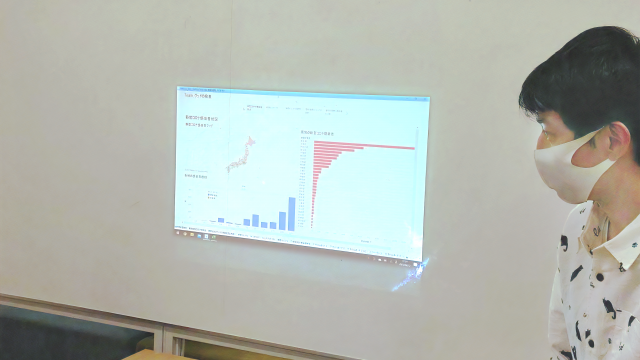
Salesforceの認知度と普及率の高まりから、当社ではSalesforce導入支援の案件が増加しています。
当社ではSalesforce 認定アドミニストレータ合格を目標に、新卒研修として約2週間Salesforceの講座を行います。
関連サービスのPardot、Tableauについても実践形式で研修を行うため、実務で扱う際にも抵抗なく取り組むことが出来るようになります。
入社後は開発研修を行います。
今年度はHTML、CSS、JavaScriptの基礎的なコーディングについて学び
後半ではGoogle-NewsAPIで取得したニュースでニュースサイト作成を行いました。
Dockerによりコンテナ環境を構築し、APIを用いて取得したニュースをクライアント側で表示する機能を開発。
チーム毎にBootstrapや、Vue.jsといったフレームワークを用いて
レスポンシブ対応デザイン、非同期処理等を駆使してページを作成していきました。
毎月1回、当社では全体で勉強会を行っています。
発表内容はUIUX、Salesforce、figmaなど、仕事関連や関心のある事などそれぞれの好きなことを発表しています。
発表者はアウトプットを通じて知識を整理し、
他の社員は発表者の考えていることや新しい知識を知れる良い機会となっています。